
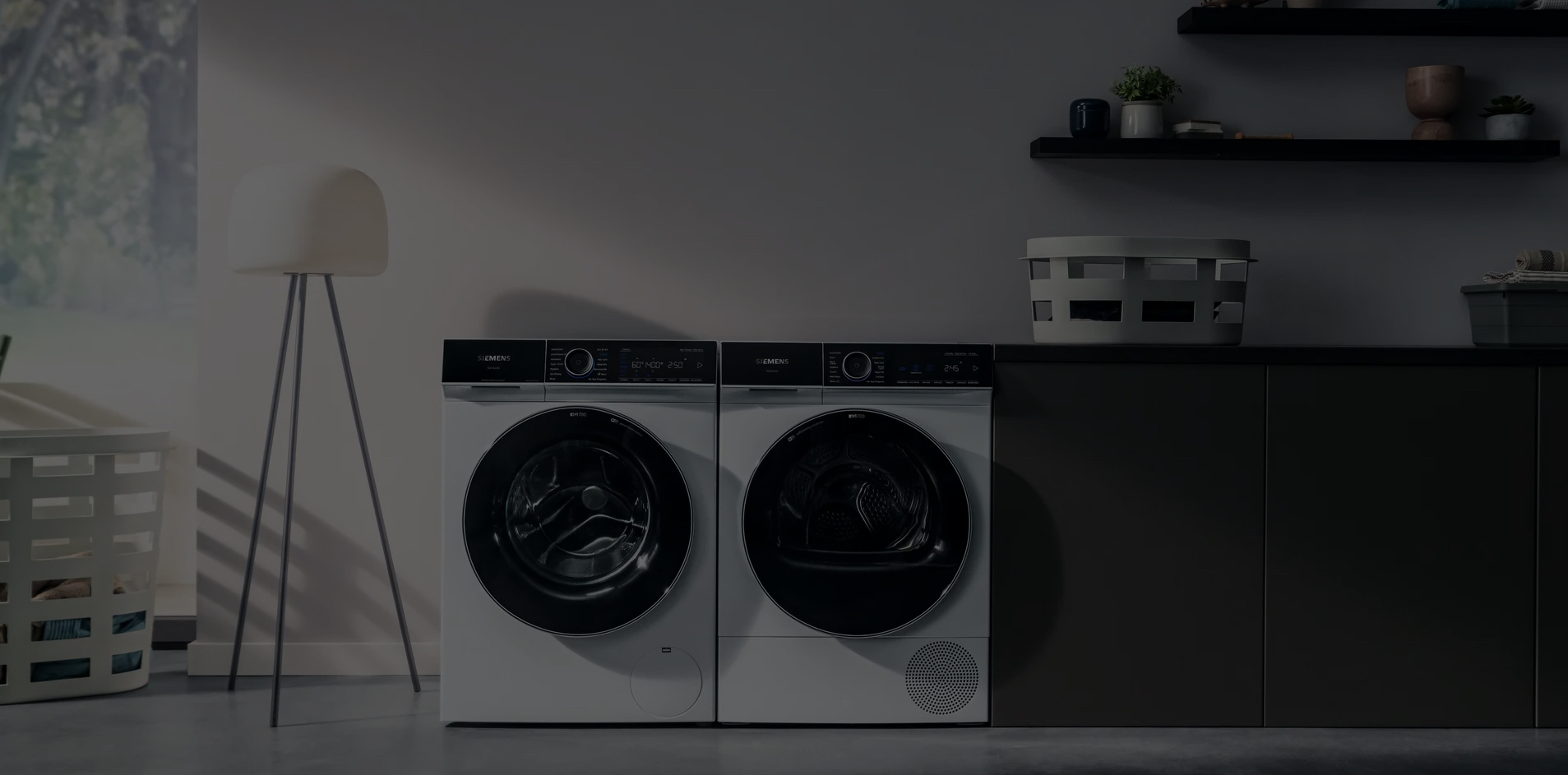
Heb je zonnepanelen of een dynamisch contract?
Koppel Home Connect aan de HomeWizard Energy app en start je wasmachine, droogkast en afwasmachine automatisch als de zon schijnt of wanneer de stroom het goedkoopst is!

Koppel je Home Connect account aan de HomeWizard app
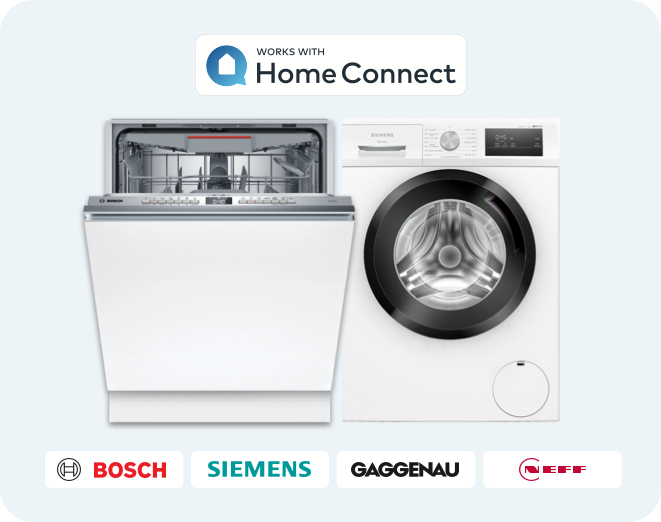
Als je een Bosch, Siemens, Gaggenau of Neff toestel hebt, dan is de kans groot dat je Home Connect hebt. Je herkent dit aan het ‘Remote Start’ icoon op je toestel (een telefoon met een wifisignaal).
Heb je ook een P1 Meter geïnstalleerd? Dan hoef je nooit meer na te denken wanneer de beste tijd is om je toestel aan te zetten. Je automatiseert het binnen de HomeWizard Energy app! Koppel je Home Connect account en stel slimme taken in. Zo maken we duurzaamheid betaalbaar.
Wassen en drogen op jouw zonne-energie
De zon schijnt en je zonnepanelen wekken stroom op. Dé ideale tijd om je wasmachine, droogkast en afwasmachine aan te zetten. Gelukkig heb jij een slimme taak ingesteld en start je wasmachine automatisch wanneer je zonne-energie over hebt. Je kan een slimme taak instellen voor elk apparaat met Home Connect. Zo wordt duurzaamheid betaalbaar.
Je toestel start automatisch wanneer de stroom het goedkoopst is
Heb je een dynamisch contract? Met slimme taken kan je jouw toestel starten wanneer de stroom het goedkoopst is. Geef aan tussen welke uren het toestel moet starten, bijvoorbeeld tussen 02:00 en 15:00 uur, en je toestel start wanneer de stroom het goedkoopst is. Beter wordt het niet!

HomeWizard P1 Meter
De P1 Meter is dé gadget die je live inzicht geeft in je stroomverbruik, injectie en gas. Klik de P1 Meter in de P1 poort van je slimme meter en start de installatie.

Bespaar geld en energie
Bespaar op je energiefactuur door zo vaak mogelijk te wassen en drogen op zonne-energie of tijdens de goedkoopste uren. Dat is goed voor de planeet en voor je portemonnee.
Goedkoper & duurzaam
Het aantal mensen met een dynamische energiecontract groeit. Voorkom dat je te veel betaald en profiteer van deze slimme functie! Goedkopere uren betekent ook dat het duurzamer is.
Voorkom netcongestie
Netcongestie is een actueel en veelbesproken onderwerp. Grijp je kans om te wassen en drogen op momenten dat weinig mensen elektriciteit gebruiken of wanneer er genoeg elektriciteit beschikbaar is.
Meestgestelde vragen
Wat is Home Connect?
Wat is HomeWizard?
Hoe verbind ik mijn apparaat met de Home Connect app?
Hoe kan ik Home Connect met de HomeWizard Energy app verbinden?
Wat is een zonnetaak?
Hoe stel ik een zonnetaak in?
Wat gebeurt er op dagen dat de zon niet of heel weinig schijnt?
Hoe stel ik een dynamisch tarieftaak in?
Waarom ontbreken de tarieven voor morgen / de volgende dag?
Is dit gratis te gebruiken?
Hoe kan ik slimme taken instellen om programma’s automatisch te starten?
Wat heb ik nodig om de Home Connect functie in te stellen?
Waarom heb ik een P1 Meter nodig?
Waarom zie ik mijn apparaten niet in de HomeWizard Energy app, nadat ik Home Connect heb gekoppeld?
Ik heb een koffiezetapparaat, magnetron of oven met Home Connect, kan ik deze koppelen?
Waarom start mijn apparaat niet?
Moet ik terug naar het instellen van de taak als ik wil schakelen op teruglevering of goedkoopste tarieven?
Kunnen jullie het idee dat ik heb voor [apparaat hier] toevoegen?
Ik krijg het niet aan de praat, help?
Wat is het verschil tussen handmatige en permanente ‘Remote Start’?
Waarom moet ik de permanente ‘Remote Start’ uitschakelen en hoe doe ik dat?
Met Home Connect kan je jouw huishoudelijke apparaten bedienen en automatiseren. Start, stop, selecteer programma’s of stel timers in. Je kunt zelfs pushmeldingen krijgen wanneer je programma is afgelopen. Samen met de P1 Meter en de HomeWizard Energy app kan je jouw wasmachine, droger of vaatwasser automatisch starten wanneer de stroom het goedkoopst is óf wanneer je zonne-energie aan het injecteren bent.
Wat is HomeWizard?
HomeWizard helpt je om je energieverbruik te verminderen en ondertussen geld te besparen. Met de HomeWizard producten krijg je live inzicht in het energieverbruik van je huishouden. HomeWizard helpt je om slim met je energieverbruik om te gaan door je huishoudelijke apparaten te laten werken op zelf opgewekte zonne-energie of tijdens de goedkoopste uren van de dag.
Hoe verbind ik mijn apparaat met de Home Connect app?
Stap 1: Download de Home Connect app en maak een Home Connect account aan.
Stap 2: Scan de QR-code in de Snelstartgids OF zoek de QR-code van je apparaat in de Home Connect verbindingsgids.
Hoe kan ik Home Connect met de HomeWizard Energy app verbinden?
Nadat je jouw Home Connect apparaat hebt aangesloten (zie de vraag hierboven), ga je naar instellingen binnen de HomeWizard Energy app, selecteer je ‘Meters’ en kies je ‘+ nieuw apparaat toevoegen’. Scroll naar beneden en druk op ‘Home Connect’. Er wordt een browser geopend waar je kan inloggen met je Home Connect account. Nadat je bent ingelogd, geef je toestemming door de voorwaarden te accepteren en wordt je teruggestuurd naar de Energy app. Selecteer nu de apparaten die je wilt toevoegen en druk op ‘Doorgaan’. En voilà, je bent klaar! Nu kun je slimme taken instellen voor je Home Connect apparaat.
Om HomeWizard met Home Connect te kunnen gebruiken, moet je de zogeheten ‘Permanent Remote Start’ voor je wasmachine uitschakelen om te voorkomen dat deze elke dag draait zonder dat je hem hebt leeggehaald. Let op: de permanente Remote Start is niet hetzelfde als de handmatige ‘Remote Start’.
Home Connect is beschikbaar voor huishoudelijke apparaten van de merken Bosch, Siemens, Gaggenau, Neff, Thermador, Balay, Constructa, Pitsos en Profilo. Om er zeker van te zijn dat je apparaat de slimme taken ondersteunt, moet je controleren of je apparaat Home Connect ondersteunt. Dit herken je aan het Home Connect- of Wi-Fi logo op je apparaat.
Wat is een zonnetaak?
Met een zonnetaak kan je apparaten in- of uitschakelen op basis van je teruglevering. Deze functie was al beschikbaar met de Energy Socket. Nu is dit ook beschikbaar voor wasmachines, drogers en vaatwassers die Home Connect ondersteunen.
Hoe stel ik een zonnetaak in?
Ga na het koppelen van Home Connect naar instellingen in de HomeWizard Energy app, klik op ‘EnergySaver’ in het menu en zoek je apparaat. Stel een nieuwe taak in en kies ‘Zonnetaak’.
Wat gebeurt er op dagen dat de zon niet of heel weinig schijnt?
Dan wil je niet thuiskomen met een stapel vuile was of vaat. Het slimme algoritme van de ‘EnergySaver’-taak houdt je teruglevering in de gaten en probeert dit zo goed mogelijk te gebruiken om je apparaat van stroom te voorzien. Als je niet aan het injecteren bent, zal je programma aan het einde van je ingestelde tijd draaien om ervoor te zorgen dat je was of vaat niet vies in het apparaat achterblijft.
Hoe stel ik een dynamisch tarieftaak in?
Ga na het koppelen van Home Connect naar instellingen in de HomeWizard Energy app, klik op ‘EnergySaver’ in het menu en zoek het apparaat waarvoor je deze taak wilt instellen. Stel een nieuwe taak in en kies ‘Dynamisch tarief’.
Waarom ontbreken de tarieven voor morgen / de volgende dag?
We zijn afhankelijk van tariefgegevens van een derde partij. Deze informatie wordt ‘s middags bijgewerkt, zodat we de goedkoopste uren voor de volgende dag kunnen bepalen. Geen zorgen, zodra de tariefinformatie beschikbaar is, zal de tarieftaak deze informatie automatisch gebruiken.
Is dit gratis te gebruiken?
Jazeker! De slimme taken voor Home Connect zijn volledig gratis in te stellen en te gebruiken in de HomeWizard Energy app. Om de zonnetaak goed in te kunnen stellen, heb je wel een P1 Meter nodig. Want zonder deze meter hebben we geen informatie over de teruglevering van je zonnepanelen en kunnen er geen huishoudelijke apparaten worden gestart.
Hoe kan ik slimme taken instellen om programma’s automatisch te starten?
Open de HomeWizard Energy app en ga naar Instellingen > ‘EnergySaver’. Zoek je apparaat en voeg een nieuwe taak toe. Je kunt een zonnetaak of een dynamisch tarieftaak instellen.
Wat heb ik nodig om de Home Connect functie in te stellen?
Je hebt een paar dingen nodig. Ten eerste heb je een HomeWizard P1 Meter, een account en de HomeWizard Energy app nodig. Om deze Home Connect functie in te stellen, heb je een wasmachine, droger of vaatwasser nodig die Home Connect ondersteunt. Wij ondersteunen Home Connect apparaten van Bosch, Siemens, Gaggenau, Neff, Thermador, Balay, Constructa, Pitsos en Profilo. Je apparaat moet toegang hebben tot internet en een actieve verbinding hebben met Home Connect.
Waarom heb ik een P1 Meter nodig?
De P1 Meter geeft je inzicht in het energieverbruik van je huis. In de Energy app kun je jouw energietarieven toevoegen en je Home Connect apparaat koppelen. Je kunt zien wanneer stroom het goedkoopst is of wanneer je aan het injecteren bent. HomeWizard zal deze informatie gebruiken om het beste moment te vinden om het programma van je apparaat automatisch te starten. Zo kan je jouw kleren en vuile vaat voordelig wassen en drogen.
Waarom zie ik mijn apparaten niet in de HomeWizard Energy app, nadat ik Home Connect heb gekoppeld?
Zorg ervoor dat je hetzelfde Home Connect account gebruikt die je hebt gebruikt om je Home Connect apparaat te koppelen. Om nieuwe huishoudelijke apparaten in te stellen, ga je naar ‘Apparaat toevoegen’, druk je op Home Connect en selecteer je jouw nieuwe apparaat. Dit werkt alleen als je jouw Home Connect account al hebt verbonden met de HomeWizard Energy app en ze hebt gekoppeld.
Ik heb een koffiezetapparaat, magnetron of oven met Home Connect, kan ik deze koppelen?
Nee, deze functie is alleen ingesteld voor de grote energieverbruikers: wasmachines, drogers, vaatwassers en was-droogcombinaties.
Waarom start mijn apparaat niet?
Het apparaat moet als status ‘Klaar’ weergeven in de ‘EnergySaver’ taak. Stel het gewenste programma op je wasmachine, droger of vaatwasser in, druk op ‘Remote Start’ op je apparaat om ervoor te zorgen dat het apparaat de ingestelde ‘EnergySaver’ taak kan uitvoeren en sluit de deur.
Moet ik terug naar het instellen van de taak als ik wil schakelen op teruglevering of goedkoopste tarieven?
Nee, wanneer je een ‘EnergySaver’ taak instelt, hoef je niet terug te keren naar dat scherm. Je kan je apparaat gewoon gebruiken. Het enige wat je moet doen is ervoor zorgen dat je een was- of droogprogramma op je apparaat instelt en op de ‘Remote Start’ knop drukt. Als je jouw apparaat niet wilt laten starten, zet je de ‘Remote Start’ knop weer uit op je apparaat óf verwijder je de slimme taak uit de HomeWizard Energy app.
Kunnen jullie het idee dat ik heb voor [apparaat hier] toevoegen?
Misschien doen we dat wel! Stuur ons een bericht.
Ik krijg het niet aan de praat, help?
Bekijk de veelgestelde vragen over Home Connect hier. Lukt het niet binnen HomeWizard? Bekijk hier een uitgebreide handleiding om te koppelen of neem contact met ons op.
Wat is het verschil tussen handmatige en permanente ‘Remote Start’?
Het verschil tussen de handmatige en permanente ‘Remote Start’ is dat je bij de handmatige instelling de ‘Remote Start’-functie elke keer moet activeren als je deze wilt gebruiken. Om dit te doen, druk je na het inladen van je was of vaat op de knop Remote Start op je apparaat. Het programma zal starten op basis van de ‘EnergySaver’ taak die je hebt ingesteld. Handmatige ‘Remote Start’ is de standaardinstelling op alle Home Connect apparaten. Schakel de ‘permanente Remote Start’ uit als je deze hebt ingeschakeld.
Waarom moet ik de permanente ‘Remote Start’ uitschakelen en hoe doe ik dat?
De permanente ‘Remote Start’ is alleen beschikbaar voor vaatwassers met Home Connect. De permanente ‘Remote Start’ betekent dat het op afstand inschakelen van je apparaten permanent is ingeschakeld. Als je de deur van je vaatwasser sluit zal deze automatisch starten met het door jou ingestelde programma zodra het voldoet aan de vereisten in je ‘EnergySaver’ taak. Dit betekent ook dat als je de deur sluit voordat je op vakantie gaat, het ingestelde programma dagelijks zal worden uitgevoerd. Om dit te voorkomen moet je de permanente ‘Remote Start’ uitschakelen.


