
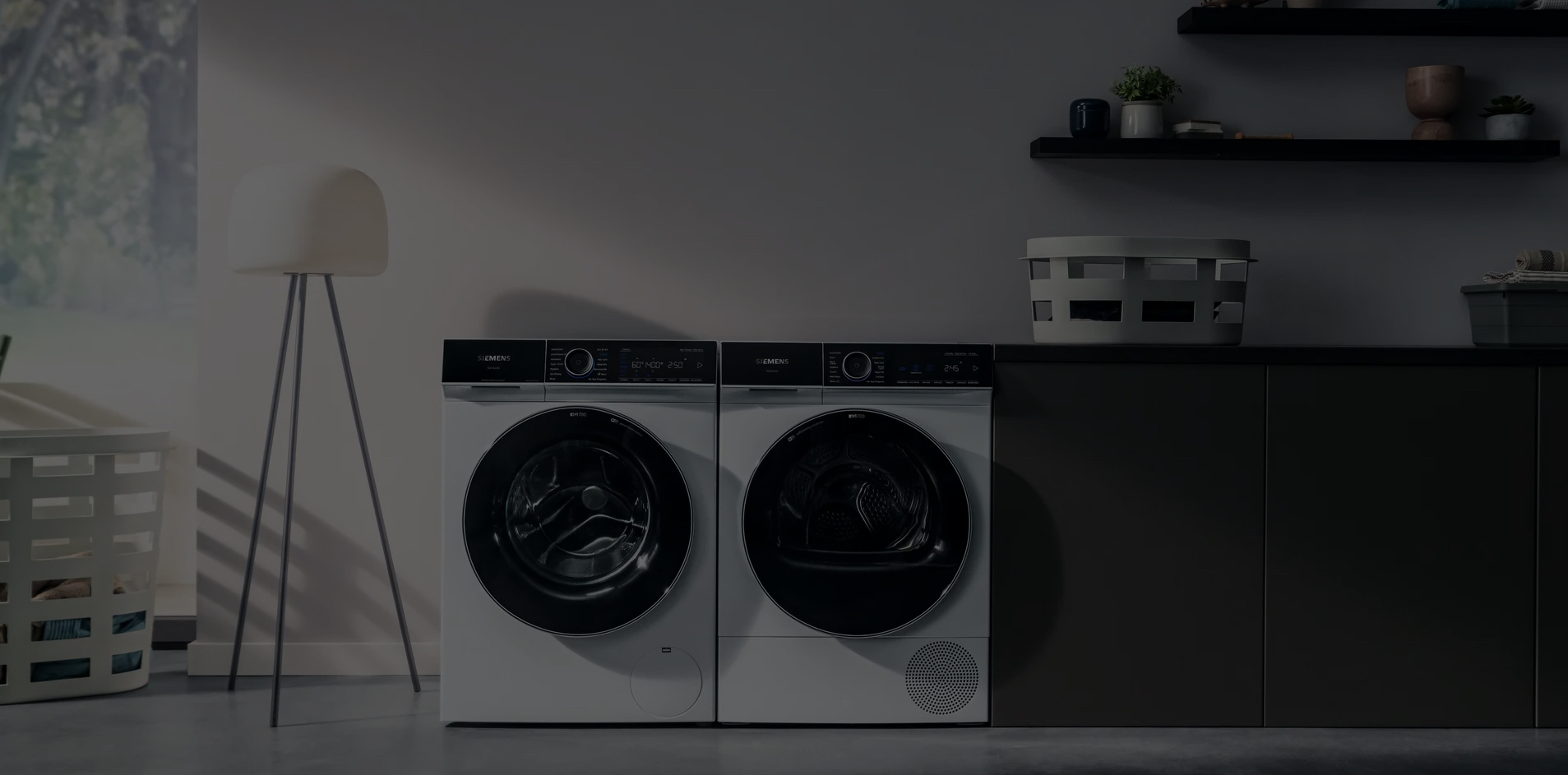
Onko sinulla aurinkopaneeleita tai pörssisähkösopimus?
Yhdistä Home Connect -järjestelmä HomeWizard Energy -sovellukseen käynnistääksesi pyykinpesukoneesi, kuivausrumpusi ja astianpesukoneesi, kun aurinko paistaa tai kun sähkö on halvinta!

Käynnistä kodinkoneesi automaattisesti
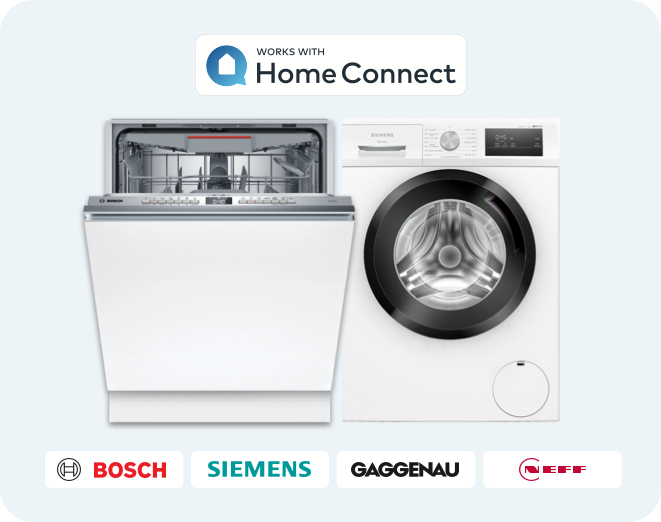
Jos sinulla Bosch-, Siemens-, Gaggenau- tai Neff-kodinkone, sinulla on todennäköisesti myös Home Connect. Voit tarkastaa tämän etsimällä etäkäynnistyskuvakkeen kodinkoneestasi.
Asensitko P1 Meter? Siinä tapauksessa sinun ei tarvitse enää pohtia, milloin olisi paras aikaa käyttää kodinkoneitasi, sillä voit automatisoida ne HomeWizard Energy -sovelluksella! Linkitä Home Connect -tilisi ja määritä älykkäitä tehtäviä. Näin teemme kestävästä kehityksestä kannattavaa.
Pese astiasi ja kuivaa pyykkisi omalla aurinkoenergiallasi
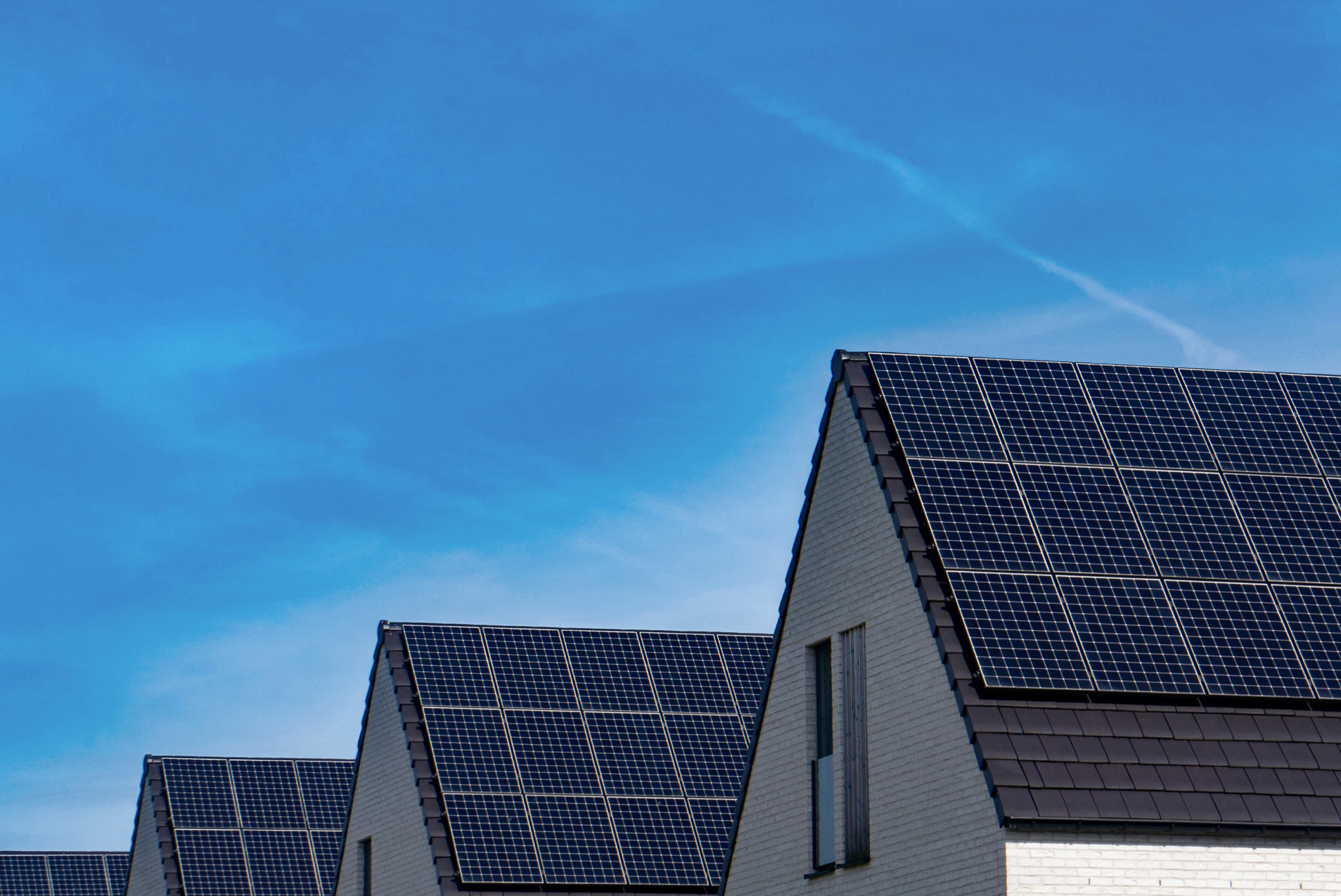
Aurinko paistaa ja aurinkopaneelisi tuottavat sähköä. On siis täydellinen aika käynnistää pyykinpesukoneesi, kuivausrumpusi tai astianpesukoneesi. Onneksi määritit Home Connect -kodinkoneellesi älykkään tehtävän, joten laitteesi käynnistyvät automaattisesti, kun sinulla on ylimääräistä aurinkosähköä. Kustannustehokasta ja ympäristöystävällistä.
Käynnistä pyykinpesukoneesi, kuivausrumpusi tai astianpesukoneesi, kun sähkö on halvinta
Onko sinulla pörssisähkösopimus? Älykkäät tehtävät sallivat sinun käynnistää laitteesi, kun sähkö on halvinta. Määritä kellonajat, jolloin kodinkoneen tulisi käynnistyä, esimerkiksi klo 02.00 ja 15.00 välillä. Näin kodinkoneesi käynnistyy, kun sähkö on halvinta! Mikä voisi olla parempaa?

HomeWizard P1 Meter
P1 Meter on välttämätön varuste, joka tarjoaa sinulle reaaliaikaisia tietoja virrankulutuksestasi, aurinkosähkösi ylijäämästä ja kaasun käytöstäsi. Liitä P1 Meter älymittarisi P1-porttiin ja aloita asennus.

Säästä rahaa ja sähköä
Säästä sähkölaskustasi pesemällä astiasi ja kuivaamalla pyykkisi aurinkovoimalla aina, kun se on mahdollista, tai kun sähkö on halvinta. Se tekee hyvää planeetalle ja lompakollesi.
Halvempi ja ympäristöystävällinen
Yhä useammalla ihmisellä on nykyään pörssisähkösopimus. Välty isoilta laskuilta hyödyntämällä tätä älykästä ominaisuutta! Sähkön halpa hintataso tarkoittaa, että sähkön käyttö on myös ympäristöystävällisempää.
Välty sähköverkon ylikuormittumiselta
Sähköverkon ylikuormitus on päivän polttava ja kiistelty aihe. Aloita astioiden pesu ja pyykin kuivaaminen silloin, kun vain harvat ihmiset käyttävät sähköä tai kun sähköä on reilusti saatavilla, koska silloin se on myös halvinta.
Usein kysytyt kysymykset
Mikä on Home Connect?
Mikä on HomeWizard?
Miten voin yhdistää kodinkoneeni Home Connect -sovellukseen?
Miten voin yhdistää Home Connectin HomeWizard Energy -sovellukseen?
Voinko yhdistää pyykinpesukoneeni, kuivaimeni tai astianpesukoneeni?
Mikä on aurinkotehtävä?
Miten voin määrittää aurinkotehtävän?
Mitä tapahtuu päivinä, jolloin aurinko ei paista tai auringonpaistetta on hyvin vähän?
Miten voin määrittää dynaamisen tariffitehtävän?
Miksi huomisen hintatietoja ei näy?
Onko käyttö ilmaista?
Miten voin määrittää älykkäitä tehtäviä ohjelmien automaattista suorittamista varten?
Mitä Home Connect -toiminnon määrittämiseen vaaditaan?
Miksi en näe kodinkoneitani HomeWizard Energy -sovelluksessa Home Connectiin yhdistämisen jälkeen?
Minulla on Home Connect -yhteensopiva kahvinkeitin, mikroaaltouuni tai uuni. Voinko yhdistää sen?
Miksei kodinkoneeni käynnistynyt?
Onko minun palattava tehtäväasetuksiin aina, kun haluan aikatauluttaa auringon tai tariffien mukaan?
Voitteko lisätä tämän mahtavan idean [tälle laitteelle]?
En saa sitä toimimaan, saisinko apua?
Miten manuaalinen ja pysyvä etäkäynnistys eroavat toisistaan?
Miksi Pysyvä etäkäynnistys pitää poistaa käytöstä (ja miten sen voi tehdä)?
Home Connectin avulla voit ohjata ja automatisoida kodinkoneitasi. Käynnistä, pysäytä ja valitse ohjelmia tai aseta ajastimia. Voit jopa saada push-ilmoituksen ohjelman päättyessä. Yhdessä P1 Meter -mittarin ja HomeWizard Energy -sovelluksen kanssa voit käynnistää pyykinpesukoneen, kuivaimen tai astianpesukoneen silloin, kun se on edullisinta tai kun käytössäsi on ylimääräistä aurinkoenergiaa.
Mikä on HomeWizard?
HomeWizard auttaa sinua vähentämään kulutusta ja säästämään samalla rahaa ja maapallon resursseja. HomeWizard-kodinkoneiden avulla saat reaaliaikaista tietoa kotitaloutesi energiankulutuksesta. HomeWizardin avulla voit kuluttaa energiaa älykkäästi käyttämällä kodinkoneitasi itse tuotetulla aurinkoenergialla tai vuorokauden edullisimpina tunteina.
Miten voin yhdistää kodinkoneeni Home Connect -sovellukseen?
1. vaihe: lataa Home Connect -sovellus ja rekisteröi Home Connect -tili.
2. vaihe: skannaa pika-aloitusoppaassa oleva QR-koodi TAI etsi kodinkoneen QR-koodi Home Connect -yhteysoppaan avulla.
Miten voin yhdistää Home Connectin HomeWizard Energy -sovellukseen?
Kun olet yhdistänyt Home Connect -yhteensopivan kodinkoneen (katso yllä oleva kysymys), siirry HomeWizard Energy -sovelluksen asetuksiin ja valitse ”Mittarit” ja sitten ”+ Lisää uusi kodinkone”. Vieritä alaspäin ja valitse ”Home Connect”. Selainikkuna avautuu, jotta voit kirjautua Home Connect -tilillesi. Kun olet kirjautunut sisään, anna lupa hyväksymällä avautuvat ehdot, minkä jälkeen palaat takaisin Energy-sovellukseen. Valitse sitten yhdistettävät kodinkoneet ja valitse ”Jatka”. Ja siinä kaikki! Nyt voit määrittää älykkäitä tehtäviä Home Connect -yhteensopiville kodinkoneillesi.
Jotta voit käyttää HomeWizardia Home Connectin kanssa, sinun on kytkettävä pois päältä astianpesukoneesi ”Pysyvä etäkäynnistys”, jotta se ei käynnistyisi joka päivä. Huomaa, että ”Pysyvä etäkäynnistys” ei ole sama kuin ”Etäkäynnistys”.
Voinko yhdistää pyykinpesukoneeni, kuivaimeni tai astianpesukoneeni?
Home Connect on käytettävissä kodinkoneilla, joiden merkki on Bosch, Siemens, Gaggenau, Neff, Thermador, Balay, Constructa, Pitsos tai Profilo. Varmista, että kodinkone tukee Home Connectia, jolloin se tukee myös älykkäitä tehtäviä. Katso, onko kodinkoneessa Home Connect- tai Wi-Fi-logo.
Mikä on aurinkotehtävä?
Aurinkotehtävällä voit kytkeä kodinkoneita päälle tai pois päältä kodin aurinkoenergian ylijäämän perusteella. Energy Socket tuki tätä toimintoa jo ennestään, mutta nyt se on käytettävissä myös Home Connect -yhteensopivien pyykinpesukoneiden, kuivaimien ja astianpesukoneiden kanssa.
Miten voin määrittää aurinkotehtävän?
Siirry Home Connectin yhdistämisen jälkeen HomeWizard Energy -sovelluksen asetuksiin, valitse ”Energiansäästö” ja etsi kodinkoneesi. Aseta uusi tehtävä ja valitse ”Aurinkotehtävä”.
Mitä tapahtuu päivinä, jolloin aurinko ei paista tai auringonpaistetta on hyvin vähän?
Et varmasti halua palata kotiin likaisten pyykkien tai astioiden keskelle. ”Energiansäästö”-tehtävän älykäs algoritmi seuraa aurinkoenergian ylijäämää ja pyrkii käyttämään sen mahdollisimman hyvin laitteen toimintaan. Jos ylimääräistä aurinkoenergiaa ei ole saatavilla, ohjelma käynnistyy asetetun ajan päättyessä, jotta tiskit tai pyykit eivät jää likaisina koneeseen.
Miten voin määrittää dynaamisen tariffitehtävän?
Siirry Home Connectin yhdistämisen jälkeen HomeWizard Energy -sovelluksen asetuksiin, valitse ”Energiansäästö” ja etsi lisäämäsi kodinkone. Aseta uusi tehtävä ja valitse ”Dynaaminen tariffi”.
Miksi huomisen hintatietoja ei näy?
Olemme riippuvaisia kolmannen osapuolen toimittamista hintatiedoista. Ne päivitetään keskipäivällä, minkä jälkeen voimme määrittää seuraavan päivän edullisimmat tunnit. Voit luottaa siihen, että kun hintatiedot tulevat saatavillemme, tehtävä käyttää niitä automaattisesti.
Onko käyttö ilmaista?
Ehdottomasti! Home Connectin älykkäät tehtävät ovat täysin maksuttomia HomeWizard Energy -sovelluksessa. Jotta voisit määrittää aurinkotehtävät oikein, tarvitset P1 Meter -mittarin. Ilman sitä meillä ei ole tietoa kotisi aurinkoenergian ylijäämästä.
Miten voin määrittää älykkäitä tehtäviä ohjelmien automaattista suorittamista varten?
Avaa HomeWizard Energy -sovellus ja valitse Asetukset > Energiansäästö. Etsi kodinkoneesi ja lisää uusi tehtävä. Voit määrittää aurinkotehtävän tai dynaamisen tariffitehtävän.
Mitä Home Connect -toiminnon määrittämiseen vaaditaan?
Siihen vaaditaan muutamia asioita: Ensinnäkin tarvitset HomeWizard P1 Meter -mittarin, tilin ja HomeWizard Energy -sovelluksen. Home Connectin määrittäminen edellyttää Home Connect -yhteensopivaa pyykinpesukonetta, kuivaajaa tai astianpesukonetta. Suosittelemme Home Connect -kodinkoneita, joiden merkki on Bosch, Siemens, Gaggenau, Neff, Thermador, Balay, Constructa, Pitsos tai Profilo. Kodinkoneessa tulee olla internetyhteys ja muodostettu yhteys Home Connectiin.
Mihin tarvitsen P1 Meter -mittaria?P1 Meter -mittari antaa sinulle tietoa kodin energiankulutuksesta. Voit lisätä energiatariffisi ja yhdistää Home Connect -yhteensopivan kodinkoneesi Energy-sovelluksessa. Näet, milloin sähkö on halvinta tai milloin sinulla on riittävästi aurinkoenergiaa astioiden tai vaatteiden pesuun tai kuivaukseen. HomeWizard käyttää tietoja käynnistääkseen kodinkoneen ohjelman automaattisesti parhaaseen aikaan.
Miksi en näe kodinkoneitani HomeWizard Energy -sovelluksessa Home Connectiin yhdistämisen jälkeen?
Varmista, että käytät samaa Home Connect -tiliä, jota käytit Home Connect -yhteensopivan kodinkoneen yhdistämiseen. Jos haluat määrittää uusia kodinkoneita, siirry kohtaan ”Lisää kodinkone”, valitse Home Connect ja merkitse uuden kodinkoneen valintaruutu. Tämä toimii vain, jos olet jo yhdistänyt Home Connect -tilisi HomeWizard Energy -sovellukseen ja linkittänyt ne toisiinsa.
Minulla on Home Connect -yhteensopiva kahvinkeitin, mikroaaltouuni tai uuni. Voinko yhdistää sen?
Et voi, tämä ominaisuus on vain paljon virtaa kuluttaville kodinkoneille: pyykinpesukoneille, kuivaajille, astianpesukoneille ja kuivaaville pyykinpesukoneille.
Miksei kodinkoneeni käynnistynyt?
Kodinkoneen tilana Energiansäästö-tehtävässä pitäisi olla ”Valmis”. Varmista, että olet valinnut haluamasi ohjelman, paina laitteen ”Etäohjaus”-painiketta varmistaaksesi, että laite toimii älykkään tehtäväsi mukaisesti, ja sulje luukku.
Onko minun palattava tehtäväasetuksiin aina, kun haluan aikatauluttaa auringon tai tariffien mukaan?
Ei. Kun olet määrittänyt Energiansäästö-tehtävän, sinun ei tarvitse palata kyseiseen näyttöön uudelleen. Voit käyttää laitetta normaalisti. Sinun tarvitsee vain varmistaa, että valitset laitteen ohjelman ja painat ”Etäkäynnistys”-painiketta. Jos et halua sen käynnistyvän, älä aktivoi etäohjausta tai muista poistaa älykäs tehtävä käytöstä HomeWizard Energy -sovelluksessa.
Voitteko lisätä tämän mahtavan idean [tälle laitteelle]?
Otamme sen harkintaan! Laita meille viestiä.
En saa sitä toimimaan, saisinko apua?
Katso usein kysyttyjä kysymyksiä Home Connectista täältä. Etkö saa sitä toimimaan HomeWizardissa? Katso kattava yhteyden muodostamisen opas täältä tai ota meihin yhteyttä.
Miten manuaalinen ja pysyvä etäkäynnistys eroavat toisistaan?
Manuaalinen ja pysyvä etäkäynnistys eroavat toisistaan siinä, että manuaalinen asetus edellyttää etäohjaustoiminnon aktivointia joka kerta, kun haluat käyttää sitä. Paina tätä varten astianpesukoneen etäkäynnistyspainiketta astianpesukoneen täyttämisen jälkeen. Ohjelma käynnistyy asettamasi ”Energiansäästö”-tehtävän perusteella. Manuaalinen etäkäynnistys on kaikkien Home Connect -yhteensopivien astianpesukoneiden oletusasetus. Poista Pysyvä etäkäynnistys -toiminto käytöstä, jos olet ottanut sen käyttöön.
Miksi Pysyvä etäkäynnistys pitää poistaa käytöstä (ja miten sen voi tehdä)?
Pysyvä etäkäynnistys tarkoittaa, että etäkäynnistystoiminto on pysyvästi päällä. Astianpesukoneen luukun sulkeminen käynnistää laitteen ohjelman, kun se täyttää Energiansäästö-tehtävän vaatimukset. Näin ollen luukun sulkeminen ennen lomalle lähtöä tarkoittaa, että asetettu ohjelma suoritetaan päivittäin. Ota ”Pysyvä etäkäynnistys” -toiminto pois päältä, jotta näin ei kävisi.


